
Accessibility tools
axe DevTools
- Last reviewed
- 13 August 2026
Browser extension for automated WCAG-based accessibility testing.
What you can test
This tool can help you identify potential accessibility barriers that may affect people with:
How to install
axe DevTools is a browser extension.
Use the links to install:
It's not available for Safari.
How to use
Once installed, you can find the tool in dev tools in your browser.
On a Mac
- Open the page you want to test
- Select Command + Option + I to open dev tools
On a Windows device
- Open the page you want to test
- Select F12 to open dev tools
Select the axe DevTools option from the dev tools panel (you may need to select a + icon to see all tools).
You can then select 'Full page scan' to start the automated accessibility checks.
What results could look like
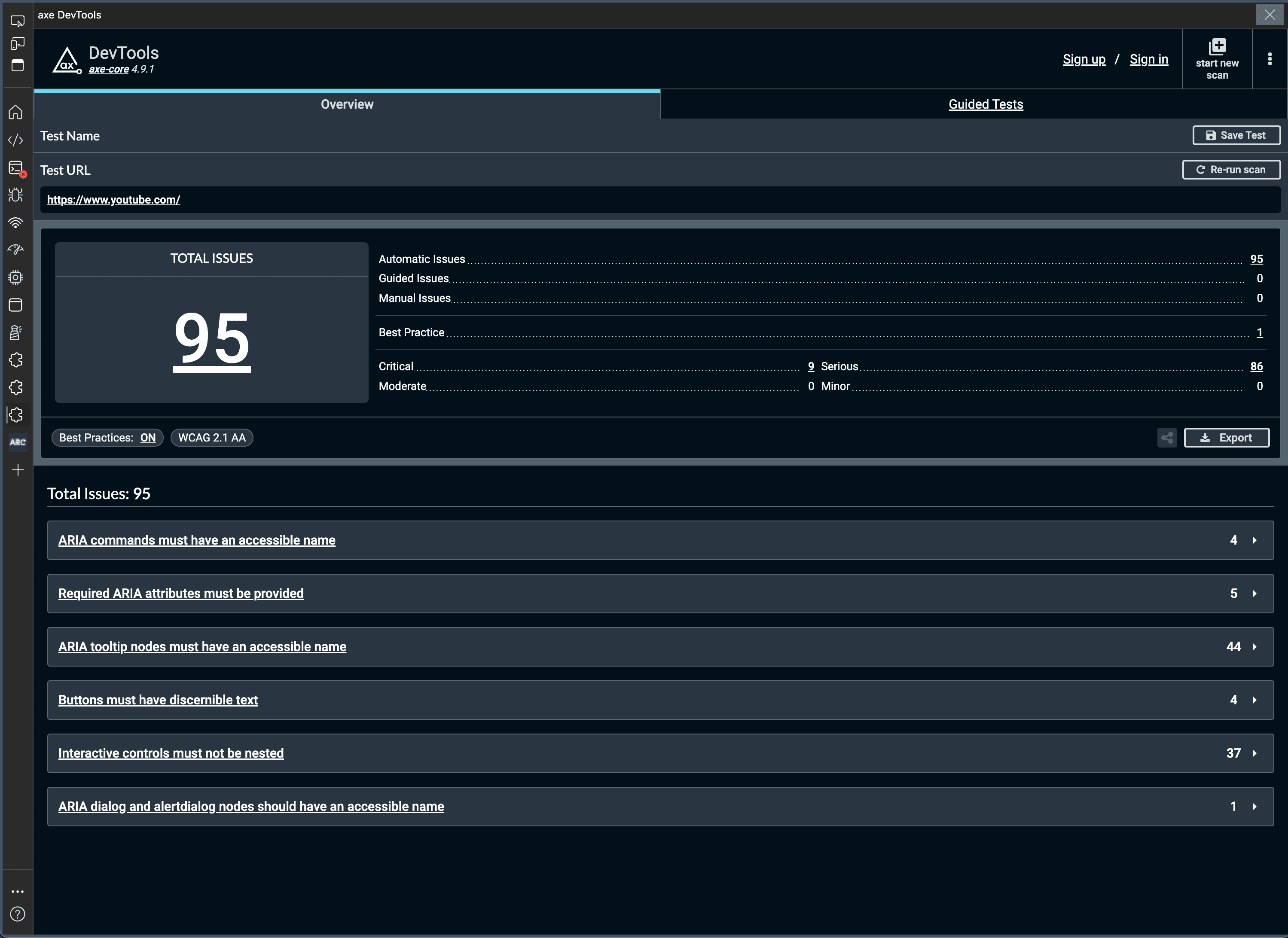
The example shows results from axe DevTools, with a list of issues classified by errors, alerts and best practice.
View larger image in a new tab
The toolkit shows any accessibility issues with your product or website. They will be labelled critical, serious, moderate or minor.
You should prioritise any that are labelled critical or serious.
These issues are for you to consider in the context of your own product or website.
What to do next
Find out how to interpret accessibility test results, including identifying false positives and avoiding false assurance.
If an issue is genuine, speak to your developer or design team to consider and implement a fix.
You can read guidance for how to manage and prioritise issues.